
Appearance
HISP To Edge
This test exercises a HISP’s ability to deliver received messages to an edge via XDR messages. Your HISP receives Direct messages from the tool and will convert the payload to an appropriate XDR message to be sent to the tool’s XDR edge endpoint. The testing tool will validate your HISP’s generated XDR using NIST XDR validation libraries.
TIP
Note: The testing tool provides specific XDR endpoints for this test: one that uses TLS and one that doesn’t; the testing tool does not require any authentication to the XDR endpoints. Before you can perform these tests, you will need to configure the Direct address that you will use in these tests to deliver XDR messages to one of the tool’s XDR endpoints. Be aware that the testing tool’s XDR endpoints are different from the XDR endpoints in the XDR Delivery Notification tests.
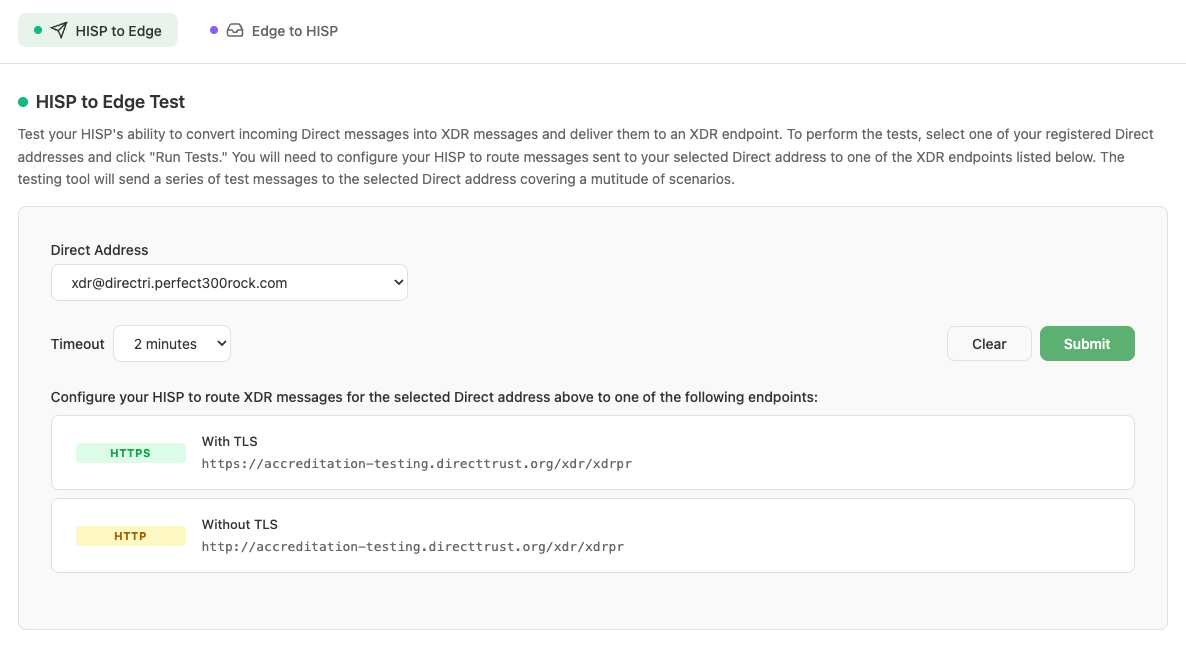
HISP to Edge Test configuration, showing the two XDR endpoints
Workflow
- Navigate to HISP Tools > Edge Protocols > XDR and select the HISP to Edge tab.
- Select a Direct address to be tested from the dropdown of registered Direct addresses. Make sure the Direct address is configured to deliver XDR messages to the testing tool’s XDR endpoint.
- Select a timeout value (2–5 minutes). A longer timeout allows more time for your system to receive messages and deliver them to the edge.
- Click Run Tests. The tool immediately begins sending Direct messages to the selected address, monitors for XDR messages being received at the edge, and continues until the timeout threshold is exceeded.
- Results are displayed in real time as each test scenario completes, with status indicators for running, success, failed, and aborted.
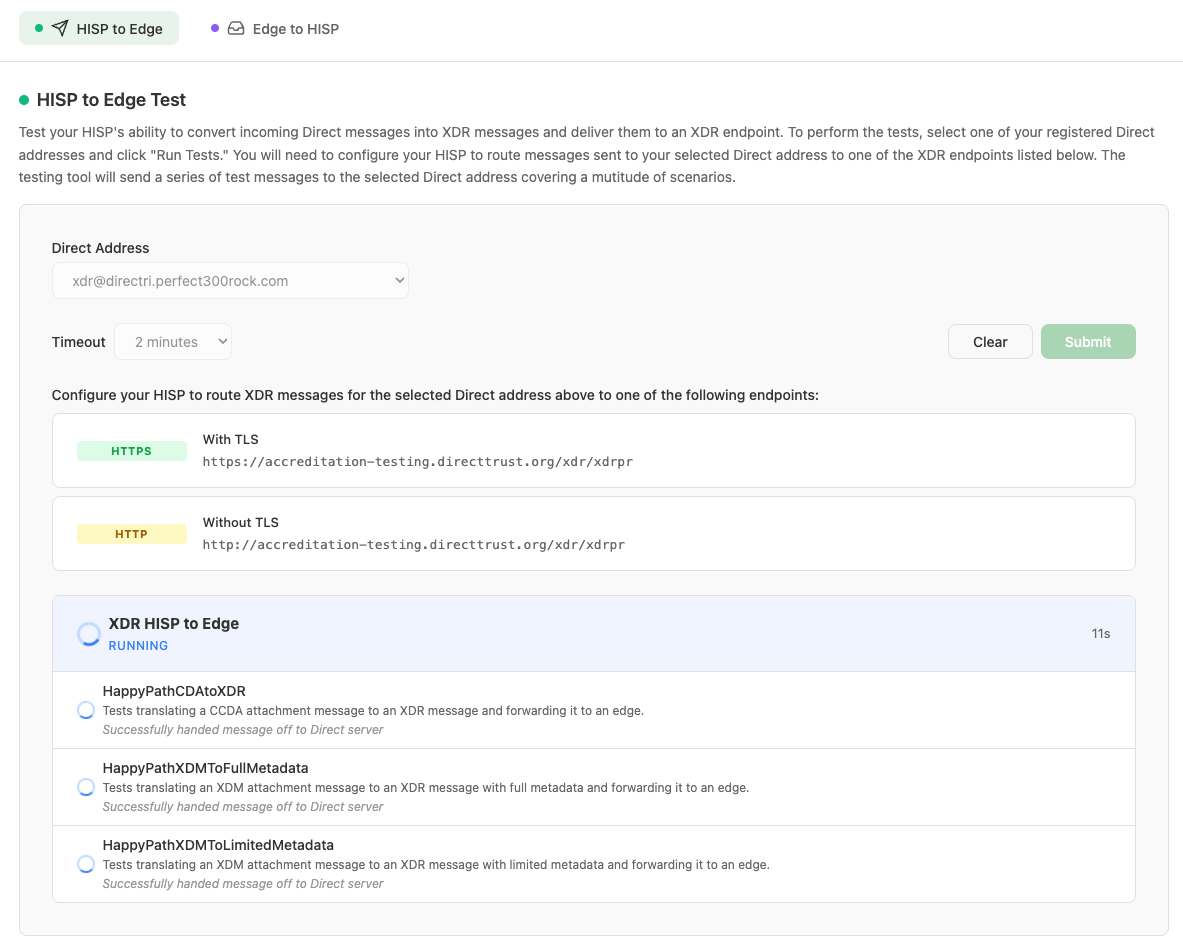
Test scenarios running in real time
- Once all scenarios finish, the overall suite status is shown (SUCCESS, FAILED, or ABORTED).
- The tool will generate a report indicating a success or failure and will report any scenarios that failed. The results can be viewed in the Results and Reports section of the tool under Management > Results and Reports.
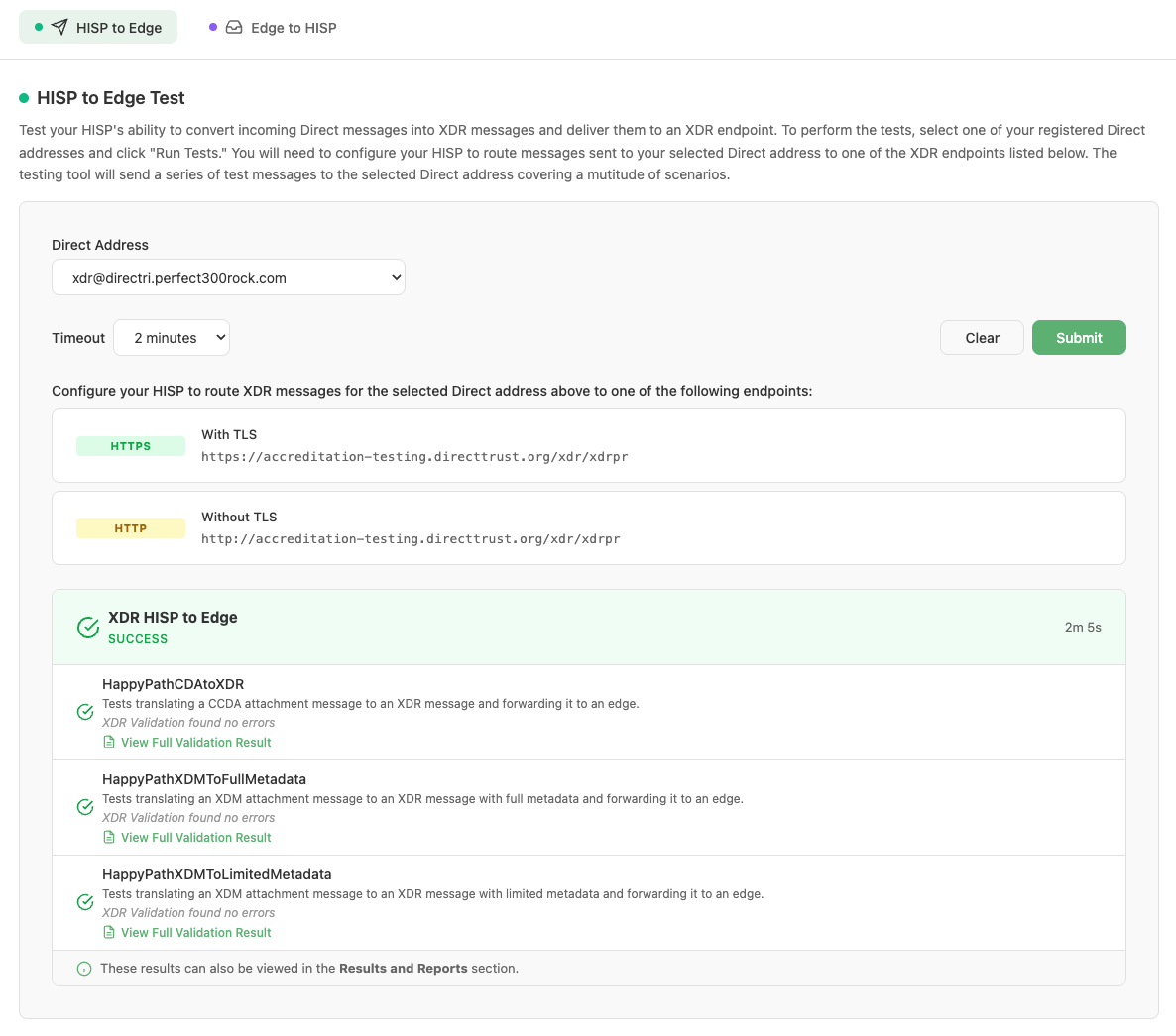
Completed test suite showing overall SUCCESS status
If the testing tool was able to successfully receive an XDR message from your HISP, it will perform an XDR validation of the XDR message content. You can view the validation results by clicking the “View Full Validation Result” link for each test scenario. The validation results contain the XDR message that your HISP delivers to the edge in the “Request” section and the validation results in the form of an XDR response in the “Response” section. If the XDR validation failed, you can inspect the “Response” in the validation results to find the cause of the validation errors.
Test Scenarios
Each of the tests maps to a specific payload-to-XDR conversion and delivery scenario. The following table lists all tests and the scenario they cover:
| Test Name | Scenario Description |
|---|---|
| HappyPathCDAtoXDR | The tool sends a Direct message that contains a CDA attachment. Your HISP is expected to convert the attachment to an XDR message and deliver it to the edge. |
| HappyPathXDMToLimitedMetadata | The tool sends a Direct message that contains an XDM attachment that contains limited metadata. Your HISP is expected to convert the attachment to an XDR message and deliver it to the edge. |
| HappyPathXDMToFullMetadata | The tool sends a Direct message that contains an XDM attachment that contains full metadata. Your HISP is expected to convert the attachment to an XDR message and deliver it to the edge. |