
Appearance
POP3 Edge
The POP3 testing tools verify a POP3 server implementation, including POP3S/STLS connections, authentication, mailbox access, and secure retrieval of S/MIME-encrypted messages. This test suite exercises a HISP’s ability to receive messages from an edge over the POP3 transport protocol. The tests validate STARTTLS negotiation, server certificates, authentication, and inbound message retrieval. It also includes negative-path tests such as invalid credentials. In each of the tests, the testing tools will connect to your HISP over POP3.
TIP
NOTE: Before you can perform these tests, you must first create a POP3 configuration profile with information that tells the testing tools how to connect and authenticate to your HISP using POP3. See the POP3 Server Configuration documentation for how to create a POP3 configuration profile.
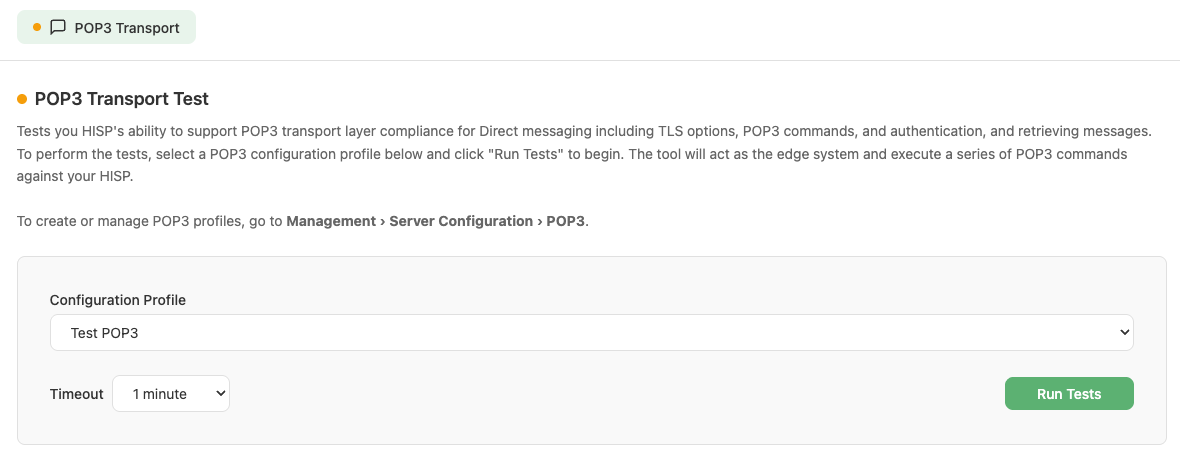
POP3 Transport Test configuration profile selection and timeout settings.
Workflow
- Navigate to HISP Tools > Edge Protocols > POP3.
- Select a POP3 configuration profile for the POP3 server that you would like to test.
- Select a timeout value (1 – 5 minutes). A longer timeout allows more time for your system to receive messages from the testing tool’s HISP.
- Click Run Tests. The tool immediately begins connecting to your HISP using POP3 to attempt to retrieve messages from the configured POP3 email account. It monitors POP3 command responses and, when applicable, retrieves messages from your HISP that have been sent from the testing tool’s HISP. Monitoring continues until the timeout threshold is exceeded.
- Results are displayed in real time as each test scenario completes, with status indicators for running, success, failed, and aborted.
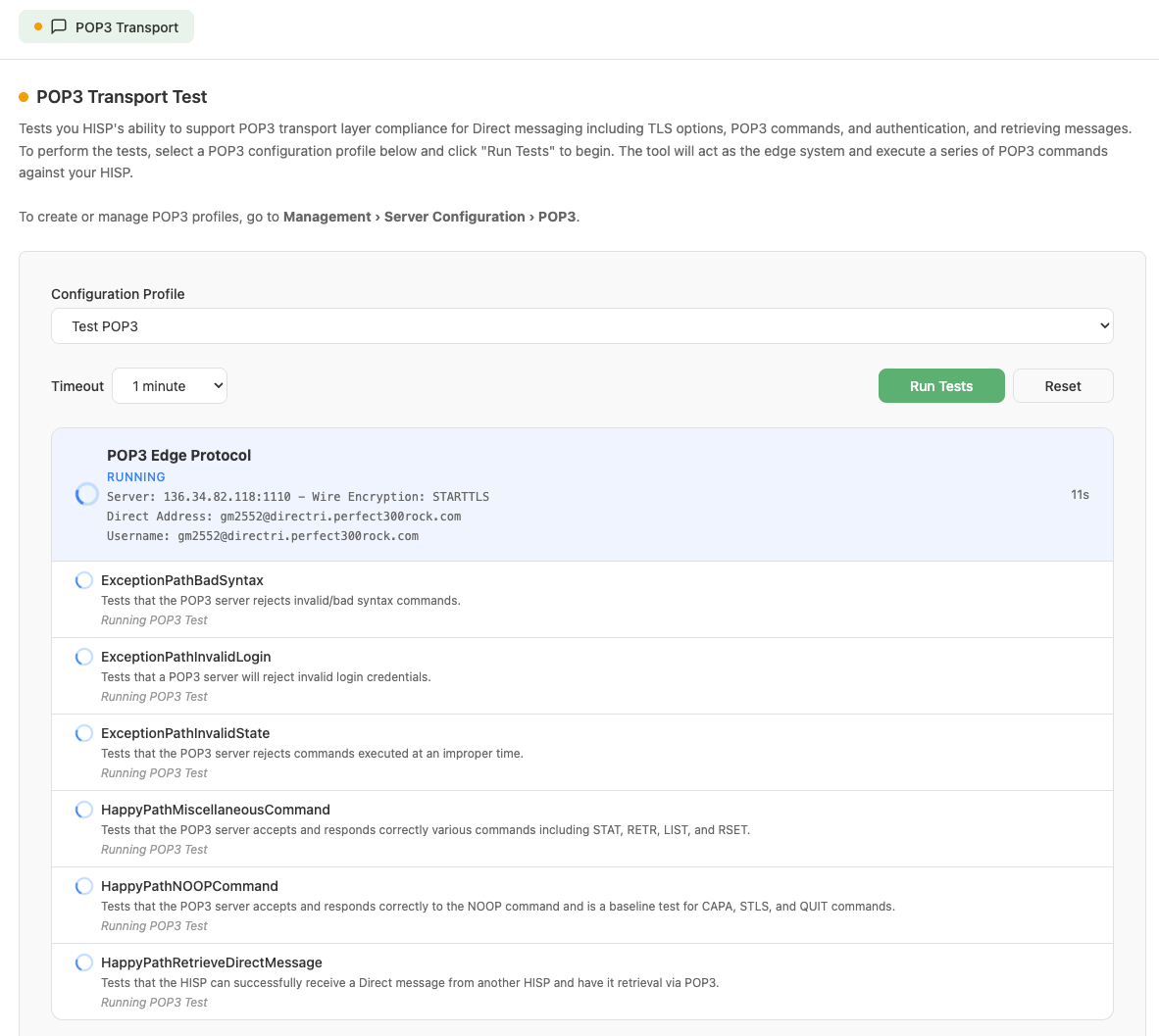
POP3 Edge Protocol test suite in progress, with each scenario shown as RUNNING.
- Once all scenarios finish, the overall suite status is shown (SUCCESS, FAILED, or ABORTED).
- The tool will generate a report indicating a success or failure and will report any scenarios that failed. The results can be viewed in the Results and Reports section of the tool under Management > Results and Reports.
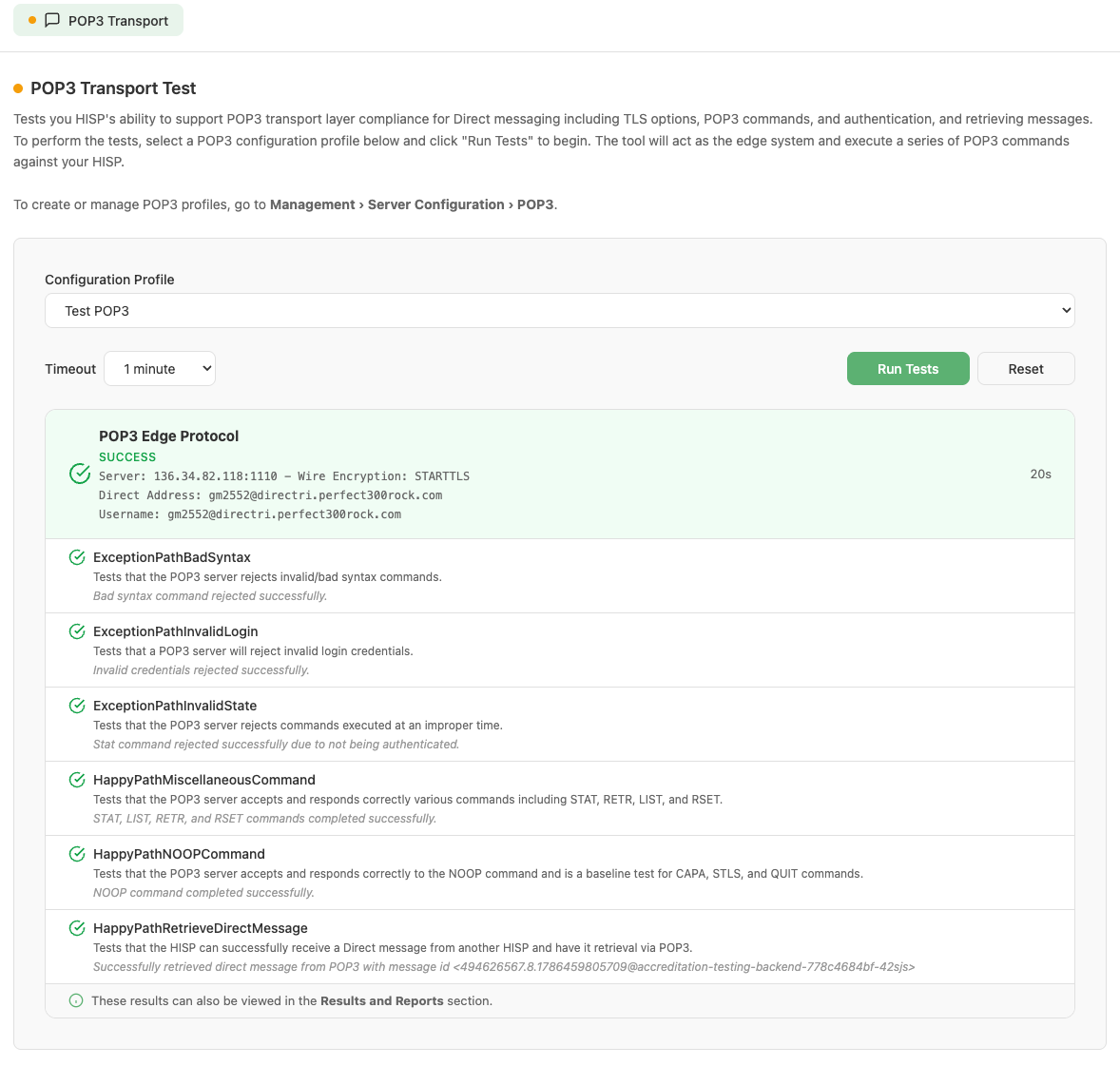
Completed POP3 Edge Protocol test suite showing SUCCESS with per-scenario results.
Each of the tests maps to a specific POP3 Direct messaging scenario. The following table lists all tests and the scenario they cover:
Test Scenarios
| Test Name | Scenario Description |
|---|---|
| ExceptionPathBadSyntax | The tool connects to the POP3 server and successfully authenticates. The tool then sends an invalid POP3 command that the POP3 server is expected to reject, responding with an appropriate error code. This will result in NO Direct message being retrieved. |
| ExceptionPathInvalidLogin | The tool connects to the POP3 server but sends an invalid password during authentication. The POP3 server is expected to reject the authentication request. This will result in NO Direct message being retrieved. |
| ExceptionPathInvalidState | The tool connects to the POP3 server and then sends a STAT command before authentication is complete. The POP3 server is expected to reject the command and respond with an appropriate error code. This will result in NO Direct message being retrieved. |
| HappyPathMiscellaneousCommand | The tool connects to the POP3 server and successfully authenticates. The tool then sends a series of various POP3 commands such as STAT, LIST, RETR, and RSET, and the POP3 server is expected to accept the commands and respond with appropriate success codes. This may result in Direct messages being retrieved if there were previously any messages in the mailbox. |
| HappyPathNOOPCommand | The tool connects to the POP3 server and successfully authenticates. The tool then sends a POP3 NOOP command and the POP3 server is expected to accept the command and respond with an appropriate success code. This will result in NO Direct message being retrieved. |
| HappyPathRetrieveDirectMessage | The tool first sends a Direct message from the testing tool’s HISP to the configured Direct address under test. The tool then connects to the POP3 server and successfully authenticates. The tool then sends a POP3 command to retrieve the message from the inbox, and the POP3 server is expected to accept the commands and respond with an appropriate success code. This will result in a Direct message being retrieved. |