
Appearance
Compliance Checking
The Compliance Checking tool allows users to run a report of their contributions into the DirectTrust Directory to ensure that entries comply with DirectTrust Directory requirements. The tool then generates non-compliance reports for review.
The tool downloads the current DirectTrust Directory CSV file (or you can choose to use a previous publication from an earlier date) and runs selected compliance checks against all entries. Results are grouped by state or HISP and packaged into a downloadable ZIP file; the zip files are downloaded from the Results and Reports section.
Workflow
- Navigate to Directory Tools > Compliance Checking.
- Select how you would like your reports grouped.
- Optionally select the date of the directory file you would like to use (defaults to the current date).
- Select which compliance criteria you would like the tool to check.
- Click Run Compliance Check. The job is submitted asynchronously.
- A confirmation banner confirms that the job was submitted. Depending on the compliance checks you have selected, it may take several minutes for the report to complete.
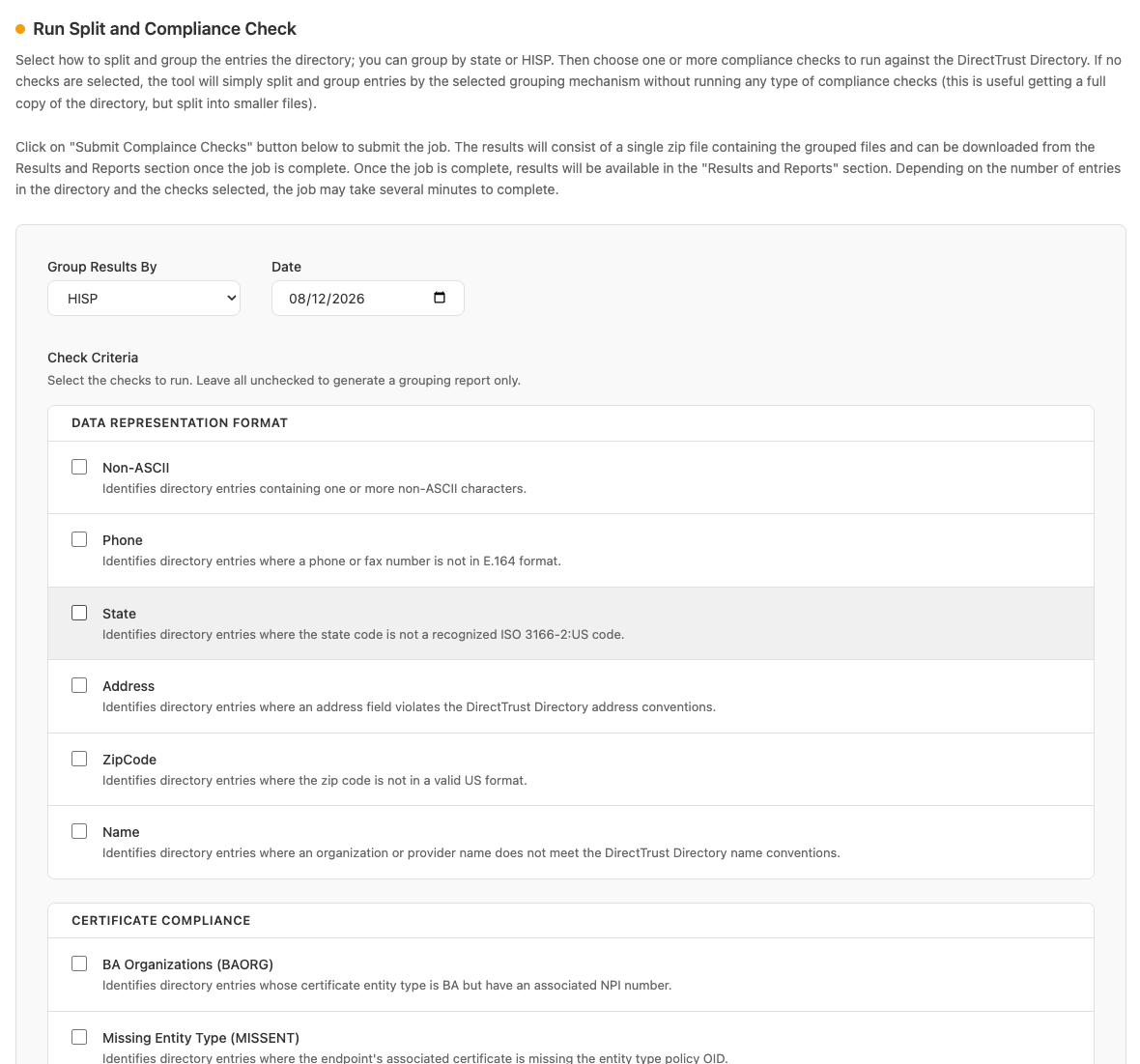
Compliance Checking configuration — grouping, date, and check criteria
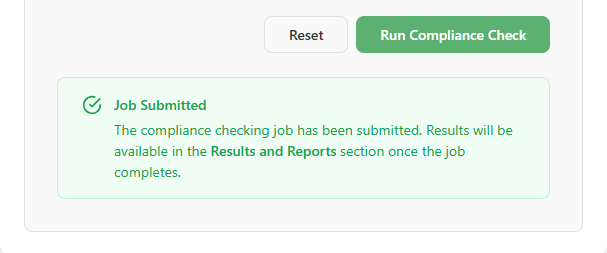
Job submitted confirmation
- You can check the report's status by going to the Results and Reports section and navigating to the Directory Compliance section. If the report is still running, you can see an indication of what the report generation is currently doing.
TIP
Note: Use the browser refresh button to see updated statuses, or click away from the Results and Reports section and back into it (the latter is recommended).
- Each submitted job includes a status of Running, Success, or Failure. Report jobs which have not completed will appear with a status of Running.
- Once report generation has successfully completed, the report ZIP file is available for download in the Results and Reports section. Click the Download Compliance File link to download the report zip file. If a report job generates no issues for a specific report type, the zip package of report results will contain no result file for that report type.
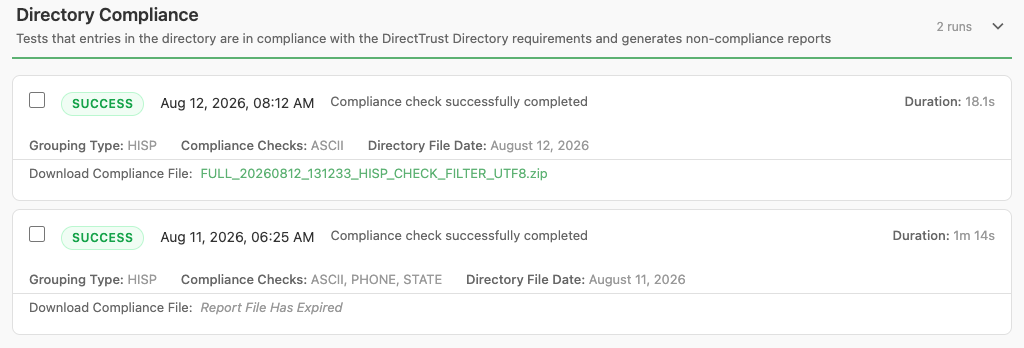
Directory Compliance results, showing job status and the Download Compliance File link
TIP
NOTE: Reports are only available for 24 hours after they have been completed. If a report has expired, you can run the report again to create a new report.
After downloading and unzipping the report results, each selected report will provide an associated CSV report file.
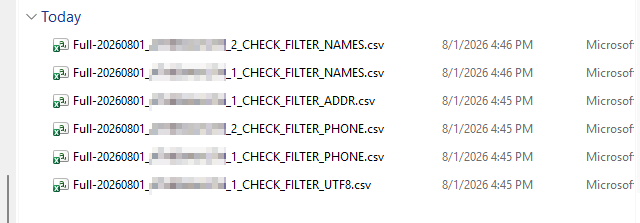
Unzipped compliance report CSV files
Each report carries the date of the relevant DirectTrust Aggregated Directory version. If the report results are large, they will be divided into multiple segments indicated with an ordering integer before the report type in the file name. The right-most part of the file name indicates the type of report. For example, the above report results package was named:

Example compliance report ZIP file name
How to Read a Result Report
Each result report contains the collection of identified issues for a report type. Each row represents all issues for the report type for a single Directory Entry.
The far right column is labeled CHECK_FAIL_REASON and it contains an explanation of the issue and provides a hint about what action is required to address the problem. For example, this is the CHECK_FAIL_REASON for an incorrectly formatted telecom information in the Directory Data submitted.
TIP
ORG_PHONE '(570) 346-7338': missing leading '+' (E.164 requires '+' followed by country code and subscriber number), contains spaces, contains hyphens, contains parentheses, 10-digit number detected. If this is a US/Canada number the +1 country code is missing; expected +15703467338 (11 digits total); ORG_FAX '(570) 341-3025': missing leading '+' (E.164 requires '+' followed by country code and subscriber number), contains spaces, contains hyphens, contains parentheses, 10-digit number detected. If this is a US/Canada number the +1 country code is missing; expected +15703413025 (11 digits total).
NOTE: One Directory Entry may contain multiple telecom numbers, so there may be multiple issues identified in one row of the results report.
Compliance Categories
The compliance checks are broken down into compliance categories. The following table lists the breakdown of the categories:
| Category | Checks Included |
|---|---|
| Data Representation Format | Non-ASCII characters, phone format (E.164), state codes (ISO 3166-2:US), address conventions, ZIP code format, name conventions. |
| Certificate Content | BA Organizations (BAORG) — entries whose certificate entity type is Business Associate but have an NPI number; Missing Entity Type (MISSENT) — endpoints where the certificate is missing the entity type policy OID; Missing Certificate (MISSCERT) — endpoints with no discoverable certificate. |
| Directory Contribution & Publication | Patient Addresses (PUBPATAD) — patient-type entries that should not be published. |
| Miscellaneous | Endpoint Verification (ENDPTVER) — endpoints that have not been verified or failed verification. |