
Appearance
Results and Reports
The Results and Reports page is the central repository for all test runs and generated compliance reports associated with the user's account. This is where users review past results, manage their test history, download compliance reports, and generate formal reports for test runs.
Viewing Results
All test suite runs and generated compliance reports are listed and grouped by tool type. Within each group, runs are sorted by date descending (most recent first). Each test run shows its overall status (SUCCESS, FAILED, ABORTED), the date and time it was executed, and an expandable list of individual test cases with their own status and comments.
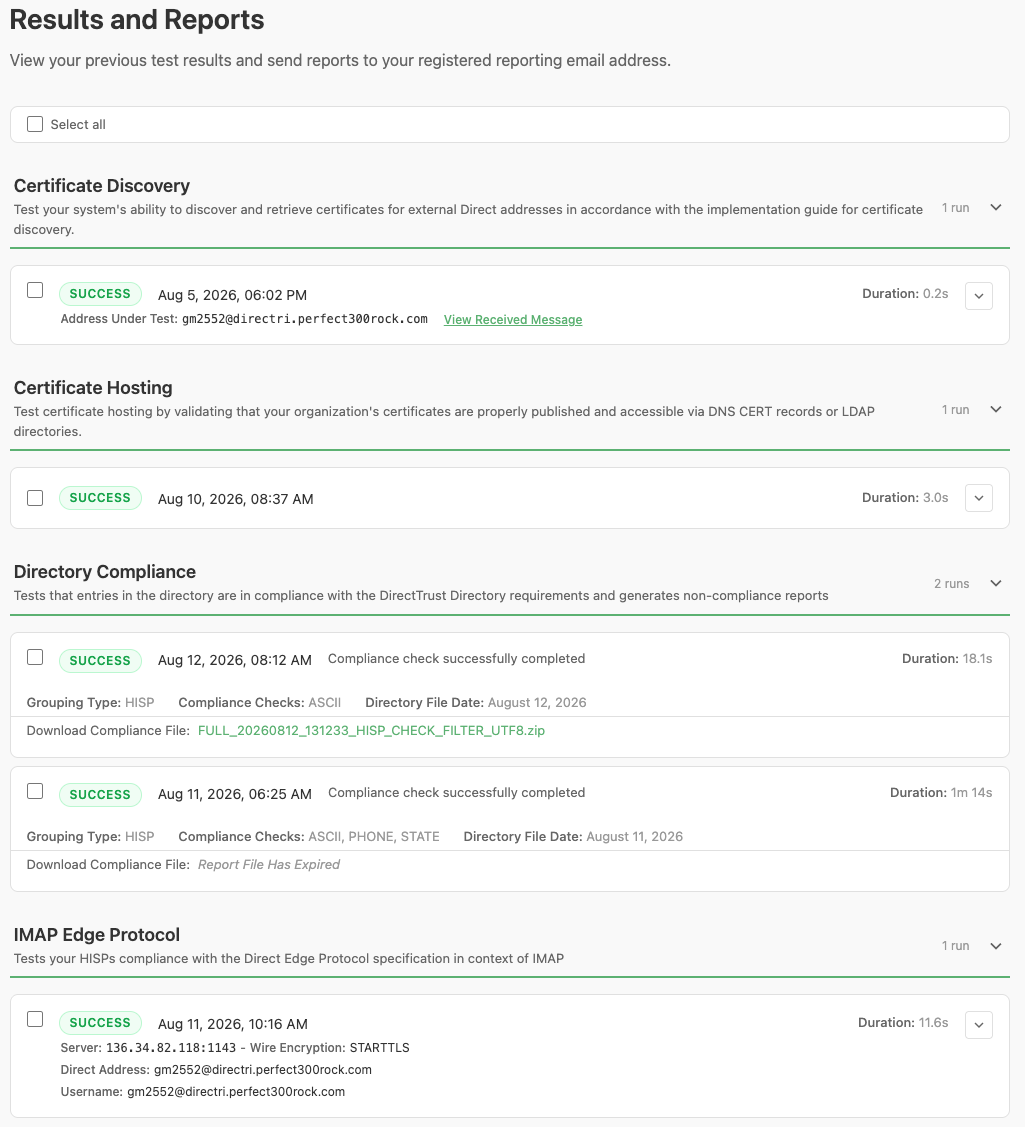
Results and Reports page
Managing Results
Through the duration of running tests and compliance reports, you can accumulate a large number of results and reports. It's a good idea to occasionally prune and clean up results that you no longer need. The steps below outline how to delete previous results.
- Select one or more test suite runs or compliance reports using the checkboxes next to each result.
- Use Select All to select every result.
- Click Delete Selected to permanently remove the selected results.
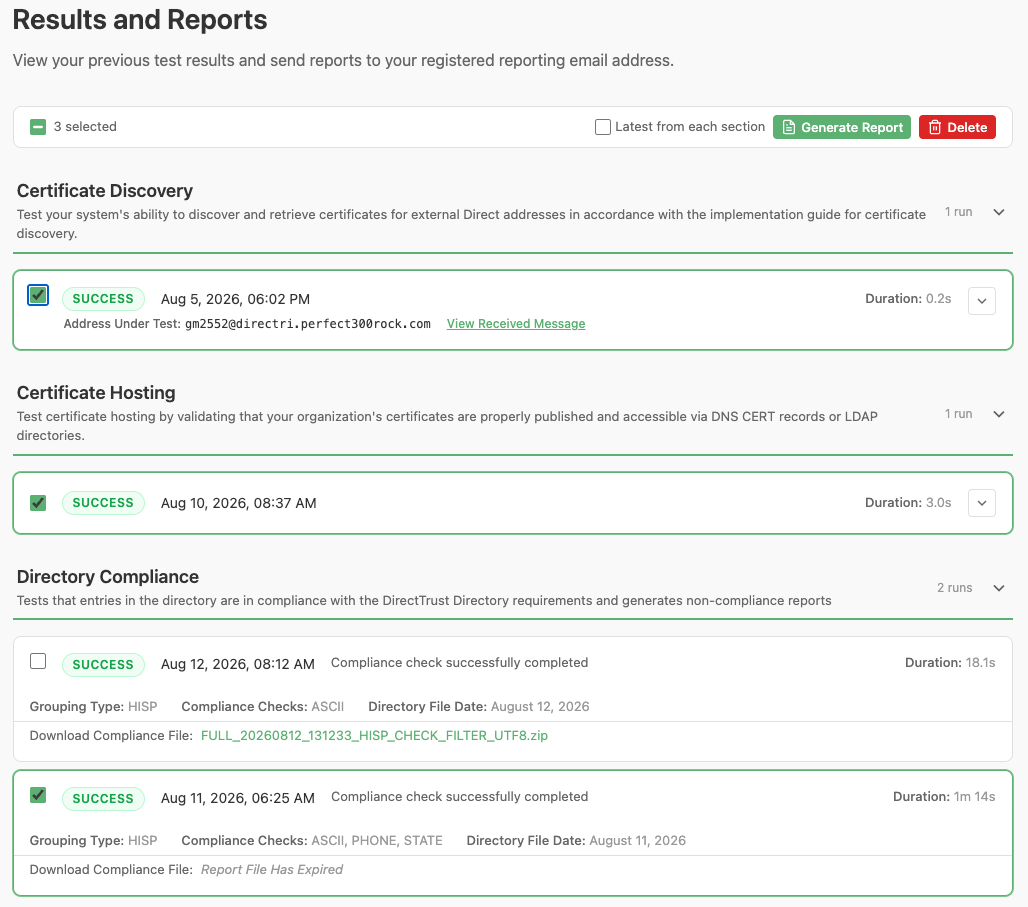
Selecting results to delete
Downloading Compliance and Report Files
For Compliance Checking and Directory Report jobs, a Download button appears on the completed result. Clicking it downloads the resulting file stored in the cloud.
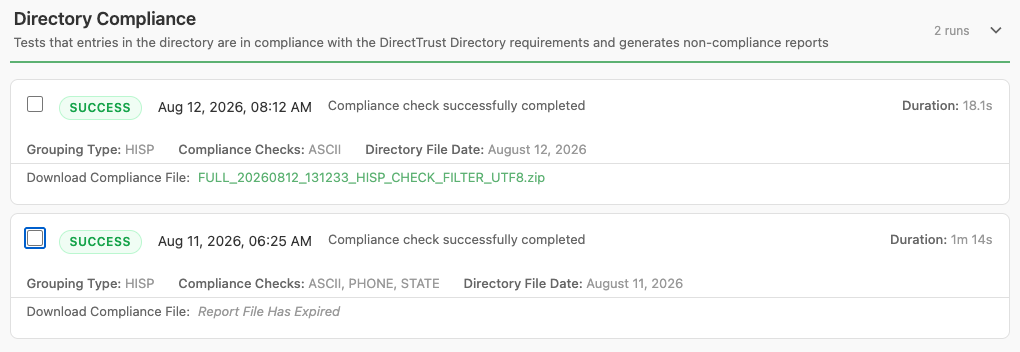
Downloading a compliance report file
TIP
Note: Compliance report content is available for a limited amount of time (generally 24 hours), so it is possible that a previously run report will expire and no longer be available. If a report expires, you can always rerun and generate a new report.
Generating Formal Reports
DirectTrust Tools can compile selected test results into a formal HTML and PDF report and email it directly to the reporting email address configured in User Settings. This eliminates the need to manually collect and format results. The generated PDF report can be used as submitted evidence for accreditation testing.
To generate a report:
- Select the test suite runs to include by checking their checkboxes.
- Optionally enable the Latest Only toggle, which includes only the most recent run of each test type rather than every selected run. This is useful for producing a clean current-state report when the same test has been run multiple times.
- Click Generate Report. The system compiles the selected results into a branded PDF document and sends it to the reporting email address registered in the user's account settings.
- A green success banner confirms the report has been queued for delivery.
TIP
Note: Reports are sent to the Reporting Email address configured in User Settings (Management > User Settings). Ensure that address is current before generating a report. Directory Compliance and Reports are not included in generated reports.